

You can now import data into Prima without using the EDC machine!
To Enable Data Importing:
Data importing is controlled by a user administration setting for your security.
If you would like to enable data importing for a user, log into Prima's Administration and go to Users.
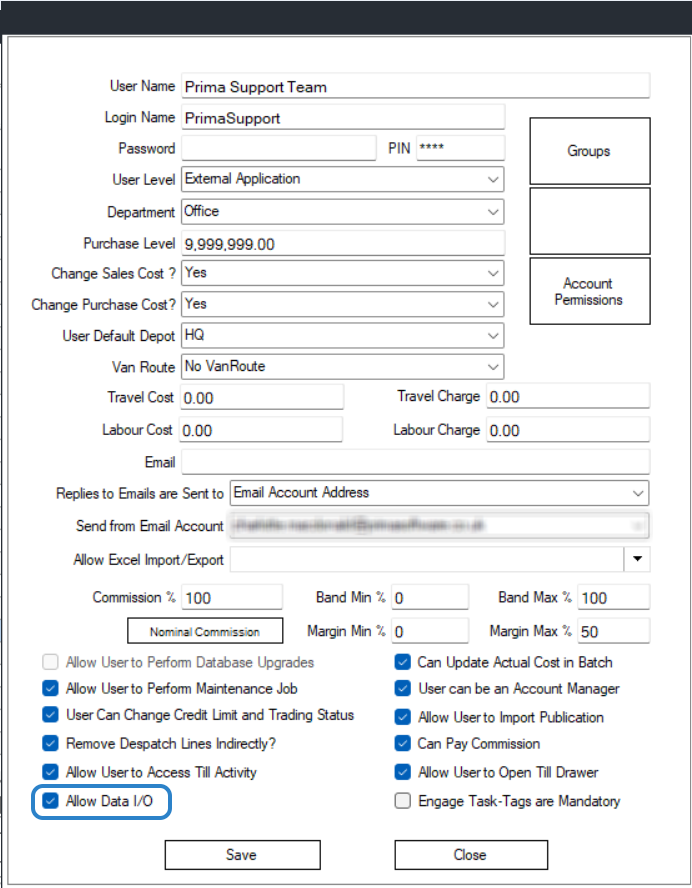
Click into the user you would like to enable and tick the option labelled "Allow Data I/O"
To Import Data:
In Prima, go to Settings > Data I/O > Download Import Templates or download the Zip File attached to this guide
Save this to your desktop.
Click into the zip folder and then choose the file you'd like to import (from the list below):
Van Routes
Warehouse Locations
System Users
Companies
Company Addresses
Company Contacts
Company Cost Centres
Company Departments
Company Contracts
Company Orderpads
Company History
Parent Companies
Products
Stock Import
Mailers
Mailer Assignment
Terms (Supplier Cost Prices)
FSM Contracts
In your chosen file, populate your data into the relevant columns - green fields are compulsory and blue are optional but recommended. Fields without a colour are completely optional.
An example product import could look like this:

Once you've populated your data, save the file to your desktop as CSV (Comma delimited) (*.csv)
Once saved, go back into Prima and go to Settings > Data I/O and then choose Import New Data.
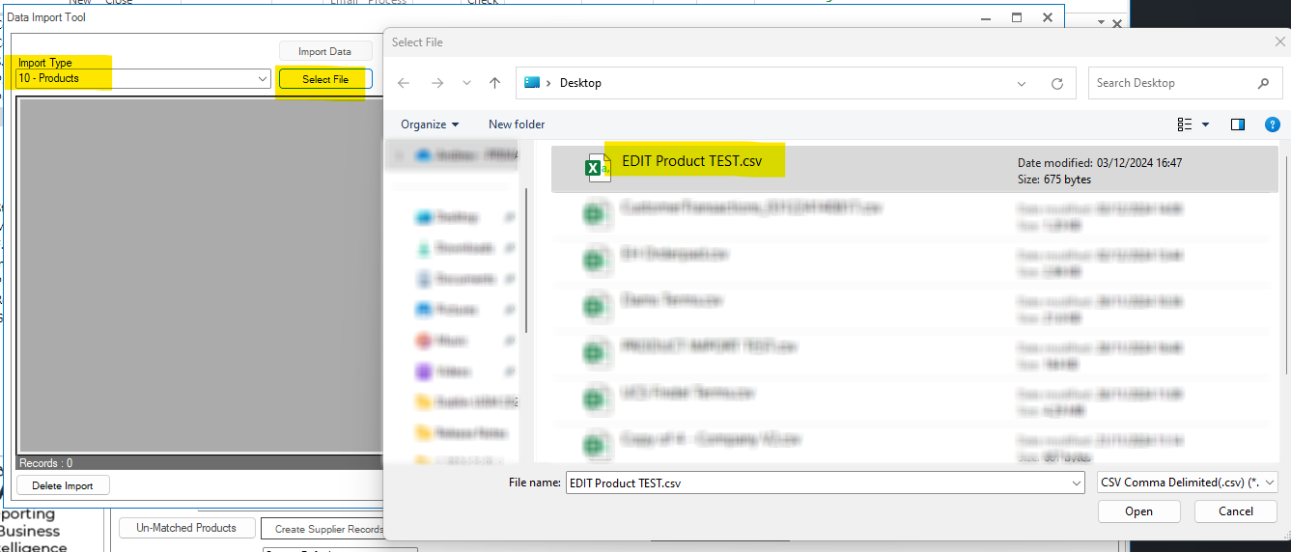
On the import type, choose the relevant import and then select file. Choose the file from your desktop:
Once in, click Check Data.
The system will check your data to ensure there's no errors in it (e.g. dodgy symbols in something like the product code).
If you do get any errors, you can see the error in the error column and can double click your grid to amend it (e.g. if you want to update a product description, double click on the description and overtype it).
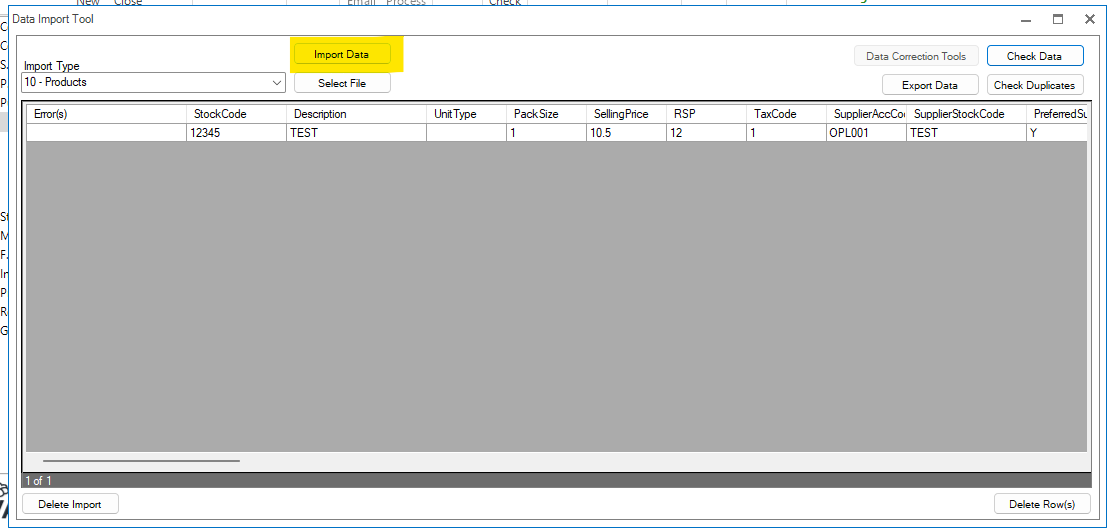
If there are no errors or once you've corrected this data, click Import Data:
Your data will then import into Prima!